Effortless Stationery Printing Tips for Canva Templates
As a designer of Canva event stationery templates, I get a lot of questions from customers about downloading and printing their customized template. I have put together the following information to help you download and print your document successfully.
How to Download Your Stationery from Canva
Step 1: Click the purple “Share” button, located on the top right of the workspace, which will open up the Download Menu.
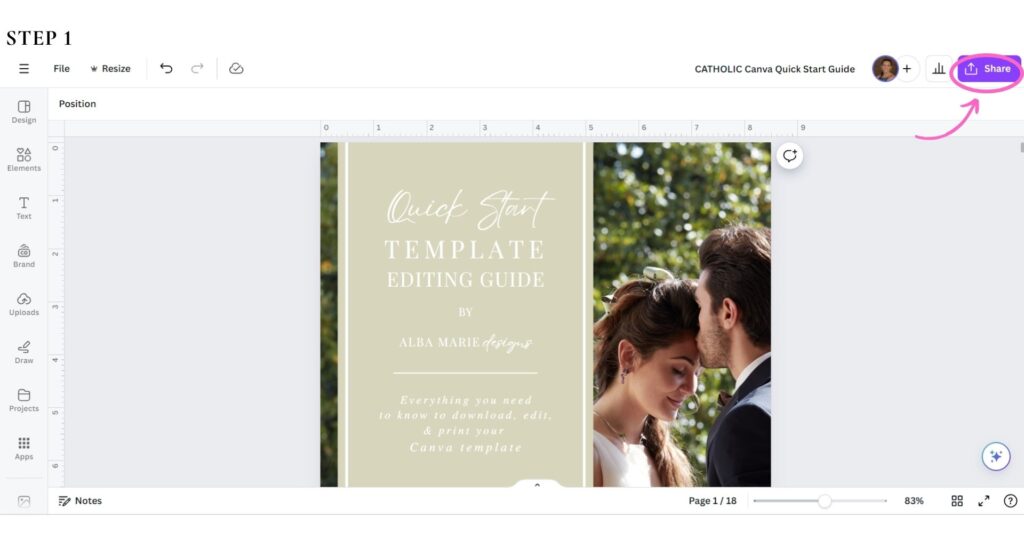
Step 2: Click the “Download” button.
Step 3: Select “PDF Print” and under Color Profile select “CMYK.”
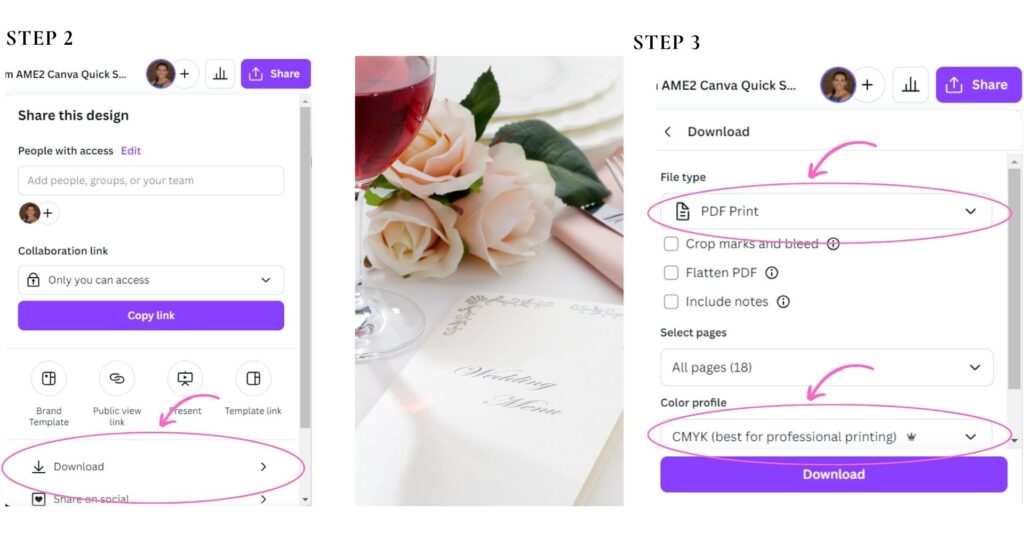
Step 4: Click the purple “Download” button and save to your computer.
Digital Sharing Tip: If you want to share your document digitally in a text message or email, choose the JPEG file format instead of PDF.
How to Print Your Stationery
Printing to the Edge of Your Paper
Most home and commercial printers cannot print to the edge of paper, which is known as “full bleed printing” in technical jargon. To achieve this effect, print professionals use paper larger than the design they are printing, allowing the photo or graphics to “bleed” over into the area of paper that will be trimmed off.
If you want to achieve this effect at home, use paper larger than the final print size, add bleed and crop marks, and then trim to size. If you are lucky and have a borderless printer at home, you can print right to the edge without having to trim!
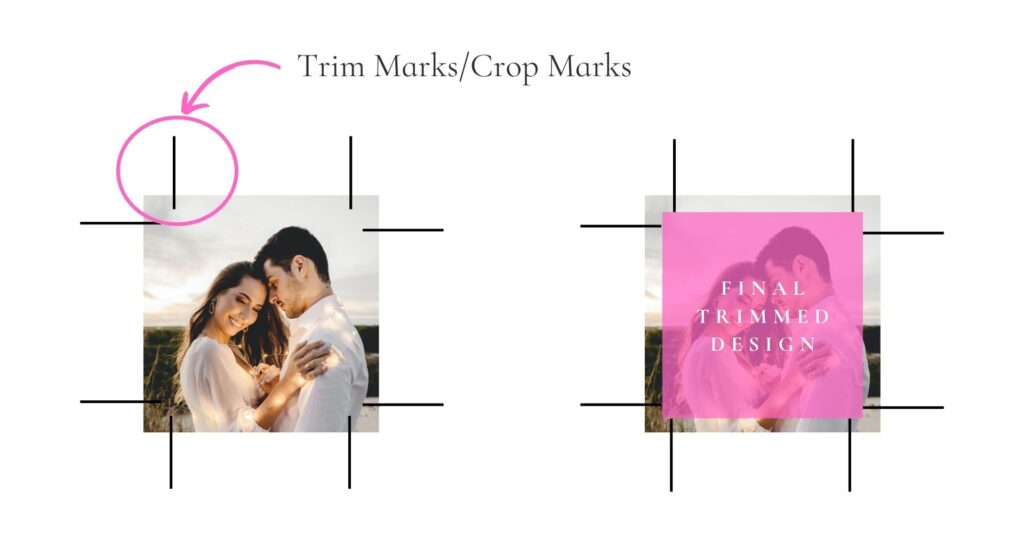
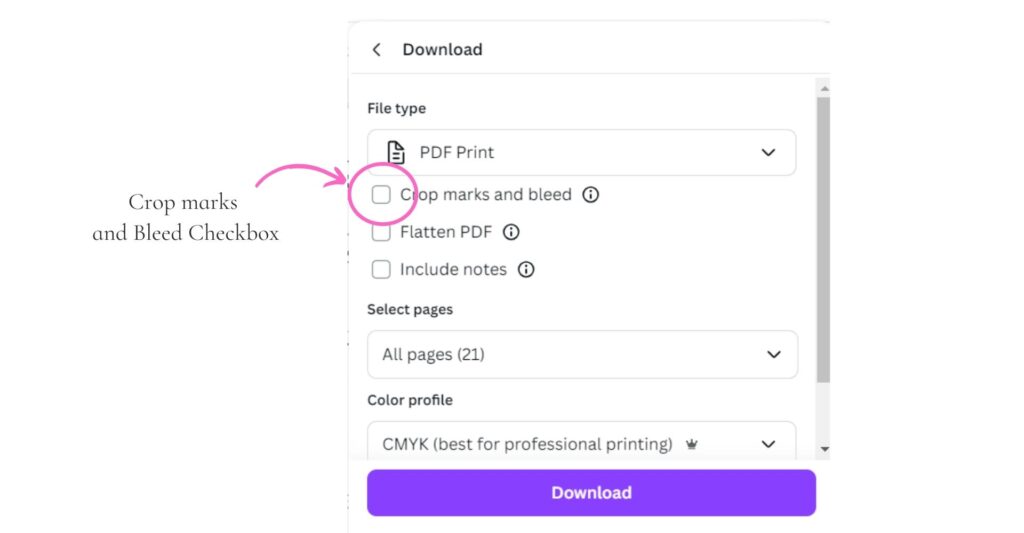
Adding Crop Marks and Bleed
When you export your design as a Print PDF from Canva, be sure to check the “Crop marks and bleed” checkbox if you want to print to the edge of the paper. However, if you are bringing your design to a professional shop to be printed, please check with their staff first. Sometimes they prefer that you do not add crop marks.
Print Actual Size
If you are printing at home, go into your printer’s print settings to set the document to print to “actual size” instead of “fit to page,” which preserves the page size set in the design. Also, set the print settings to “high quality” or “photo quality” for best results.
Understanding Screen Color vs. Printed Color
This is one of the most common surprises people encounter when printing at home or at a copy shop, and it is completely normal once you understand why it happens.
Your computer screen displays color using a system called RGB, which stands for Red, Green, and Blue. Screens produce color with light, which is why colors on a screen can appear so vivid and bright. Printers, on the other hand, use a system called CMYK, which stands for Cyan, Magenta, Yellow, and Black. Printers create color by layering ink on paper, which is a fundamentally different process.

This means that the colors you see on your screen will almost never look exactly the same when printed. Bright blues, vivid pinks, and neon shades are the most likely to shift. Colors generally appear a little more muted or darker in print than on screen.
Here are a few things you can do to reduce color surprises:
Always export using CMYK. When downloading your file from Canva, select “PDF Print” and choose CMYK under the Color Profile setting, as described above. This tells the printer to interpret the colors correctly.
Order a single sample first. Before you print your full order, order just one or two copies. Most online printers allow this. It is much better to discover a color issue on a $5 sample than on a $150 order.
Calibrate your expectations. If your design has gold, deep burgundy, or navy tones, know that these colors tend to print beautifully. Light pastels and very bright colors are the trickiest to match.
Ask your print shop. If you are using a local or online print shop, ask them if they do a soft proof, which is a digital preview of how your file will look when printed. Many professional printers offer this service.
What to Do If Your Prints Come Out Wrong
Even with the best preparation, printing does not always go perfectly on the first try. Here is how to troubleshoot common problems.
Colors look too dark or washed out. This is usually a CMYK vs. RGB issue. Make sure you downloaded your file using the CMYK color profile setting in Canva. If you are printing at home, also check that your printer settings are set to “photo quality” or “best quality.”
Text looks blurry or pixelated. This usually means the file resolution is too low. Make sure you are downloading a PDF rather than a JPEG or PNG for printing. PDFs preserve the sharpest quality.
The design is cut off or has a white border you did not want. Go back into your printer settings and confirm you are printing at “actual size” rather than “fit to page.” If using a home printer, also confirm your paper size matches the design size.
The ink smears or does not dry properly. This can happen when the wrong paper type is used with an inkjet printer. Glossy or coated papers sometimes cause smearing with inkjet ink. Try switching to an uncoated or matte cardstock.
The paper jammed. Your cardstock may be too thick for your home printer. Try a lighter weight, such as 80# cardstock, and work your way up from there.
You printed at a shop and the colors were still off. Different print shops use different machines and calibrations. If FedEx or Staples gave you poor results, try a dedicated stationery printer online. The results are often much better.
If you are still having trouble, feel free to reach out to me. I am happy to help troubleshoot.
Where to Print Your Stationery
Choosing the right printer is one of the most important decisions you will make, and it can feel overwhelming. Here is a clear breakdown of your options, from easiest to most professional.
Option 1: Print Directly Through Canva
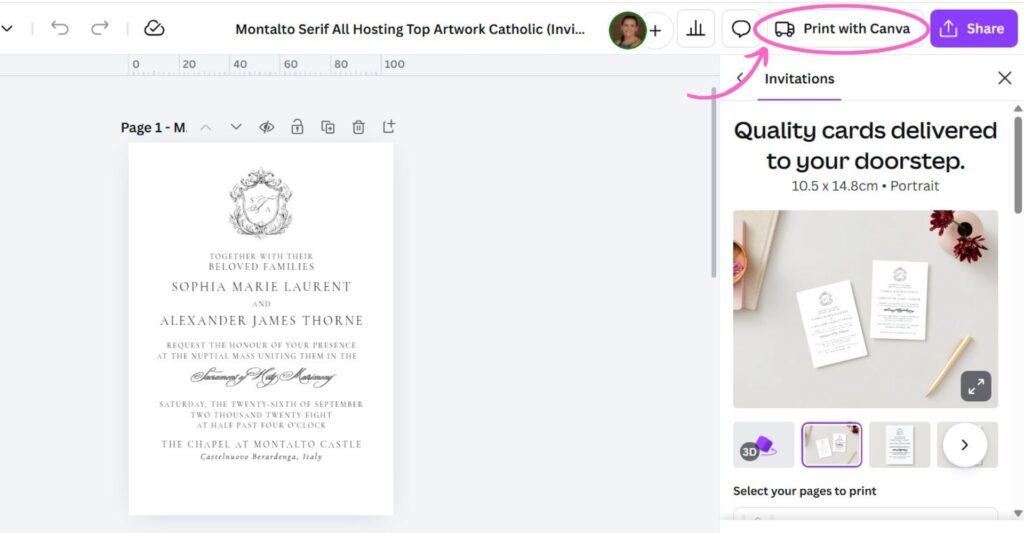
If you purchased your template through Canva and customized it there, the simplest option is to print directly through the Canva platform. Canva works with professional print partners and ships directly to your door. The color accuracy is generally excellent because Canva knows exactly how its own designs should print. The only limitation is that Canva offers a specific range of standard sizes, so if your design is a custom size, you may need to look elsewhere.
Option 2: Beginner-Friendly Online Printers
These services are designed for people printing their own designs and templates. They accept PDF uploads and do not require design expertise to navigate.
Prints of Love is one of the most highly recommended online printers for people printing Canva templates and invitation suites. They offer fast 2 to 3 day printing, free shipping, free basic envelopes, and excellent customer service. They even plant a tree for every order placed. Many Canva template customers have reported that their prints matched their screen designs beautifully. This is a great choice if you are not sure where to start.
Vistaprint is a well-known, affordable option that frequently offers sales and coupon codes. It works well for basic stationery and is a good choice if budget is your main concern.
Overnight Prints is a great option when you need your order quickly. They also use recycled paper and waterless printing for a more eco-friendly option.
Option 3: Specialty Stationery Printers
These printers offer more paper choices, higher quality, and more customization options. They are a step up in both quality and ease of use.
Cards and Pockets is excellent for full invitation suites. You can order matching pockets, envelopes, belly bands, and envelope liners all in one place, with no minimum order quantities.
Printswell is a professional-grade printer that many stationery designers rely on for high-quality results. While it is popular among stationers, individual customers can also use it.
Mingo is another professional-grade option known for consistent quality, also popular in the stationery industry.
Option 4: Local Print Shops
Your local print shop, including Staples, FedEx, Office Depot, or an independent print shop in your area, can be a convenient and fast option. However, results can vary significantly depending on the equipment and staff. If you go this route, always print a single sample first before committing to a full order. Keep in mind that local shops may not offer the same paper variety as specialty online printers.
A Note on Letterpress Printing
If you want your stationery to feel truly luxurious and one of a kind, letterpress printing is worth exploring. Letterpress is one of the oldest printing techniques in the world and has experienced a beautiful revival in the wedding and event stationery world.
Here is how it works: your digital design is transferred to a plate, which is then pressed directly into thick cotton paper. This pressing action creates a beautiful, tactile impression in the paper that you can both see and feel. The result is stationery that looks deeply elegant and handcrafted, with crisp, rich ink and a distinctive textured impression.
Letterpress works best with simpler designs, crisp fonts, and one or two ink colors. Very fine lines and tiny fonts can sometimes lose their sharpnesss in the process. It is most commonly used for wedding invitations, formal announcements, and personal stationery where a premium impression matters.
Traditionally, letterpress has been an expensive process reserved for professional print studios. However, a few accessible online printers now offer letterpress at much more reasonable price points.
TOG.ink is one of the most talked-about options for affordable letterpress printing. They use vintage Heidelberg presses and offer 1 and 2 color letterpress on 100% cotton paper. Their ordering process is straightforward, they have low minimums, and the quality is excellent. TOG.ink requires you to create a free account to see pricing and place orders, but it is open to anyone. Note that they only accept print-ready PDF files, so make sure you download your Canva design as a PDF before uploading. TOG.ink also offers foil stamping and thermography if you want to explore other specialty finishes.
If you would rather work with a smaller business for letterpress, you may want to consider Rise and Shine Letterpress, which even has a blog post on their website about letterpress printing Canva designs called How to Get the Best Letterpress Prints from Your Canva Designs
If you are interested in letterpress but unsure whether it is right for your design, feel free to reach out to me and I can help you evaluate your options.
Final Tips Before You Print
Before you place your final order, run through this quick checklist:
- Download your file as a PDF using the CMYK color profile setting in Canva.
- Order one sample copy before printing your full quantity.
- Set your printer or upload settings to “actual size,” not “fit to page.”
- Use a cardstock weight appropriate for your printer (80# for home printers, 100# or higher for professional shops).
- Proofread your design one final time before sending it to print.
- Remember, there are no refunds on custom printed items once they are in production.
And remember, if anything feels confusing along the way, I am here to help. Reach out through my website and I will do my best to point you in the right direction.